
Desktop capture on PandaLive splits into two technical setups: Broadcasters (BJs) saving a local master file at the same time they transmit their live RTMP feed, and authorized editors or managers recording the pandalive.co.kr web player with the creator's explicit permission.
Do not use screen-recording software to capture another creator's PandaLive broadcast without their prior authorization. PandaLive's Viewing Standards prohibit unauthorized file creation and distribution, with penalties including immediate account termination and non-refundable loss of paid Hearts (하트). See Rules & Consent.
1. For Broadcasters (BJs): Simultaneous Recording During External-App Broadcasts
PandaLive retired its legacy standalone PC broadcaster player and moved high-definition (1080p) PC broadcasting to external encoders via 방송하기 → 외부 앱에서 방송하기 - 방송시작. After setting your room title, category, rating (19금 / password / 팬방), and notifications, PandaLive issues a custom Server URL and Stream Key for OBS Studio, PRISM Live Studio, or Streamlabs.
Because your scene is already rendered locally before it leaves your PC, enabling simultaneous local recording is the most reliable archive method available—requiring zero wait times and preserving quality even if viewer replays are disabled.
Aligning PandaLive's RTMP Cap With Your Local Archive
According to PandaLive's official external-broadcast guide, live ingest should stay within these limits for stable playback:
- Live Video Bitrate:
8,000 kbpsor lower (CBR recommended for RTMP stability) - Live Audio Bitrate:
320 kbpsor lower (AAC, 48 kHz) - Frame Rate:
30 fpsor60 fps(for 720p and 1080p rooms) - Keyframe Interval:
1–2 seconds
In OBS Studio (Settings → Output → Output Mode: Advanced), choose between two local recording strategies on the Recording tab:
| OBS Recording Mode | GPU / CPU Impact | When to Choose It |
|---|---|---|
| "Use stream encoder" | Near zero extra encoder load (writes the exact 8,000 kbps stream packets to disk) | Single-PC broadcasts, talk/radio shows, or laptops where running a second GPU encode session causes dropped frames. |
| Dedicated NVENC / QuickSync / VideoToolbox (CQP 18–21) | Uses a second hardware encode session; higher disk write rate | High-motion dance showcases (such as Panda Class segments) where 8,000 kbps CBR introduces blocky compression during fast choreography, or when archiving clean 1080p60 masters for highlight editing. |
Separating 팬더티비 도우미 Alerts & Multi-Track Audio
Many BJs paste their 팬더티비 도우미 (PandaLive Helper) preset URL as an OBS Browser Source to display Heart donation animations and chat overlays. If you plan to edit highlights later without alert chimes drowning out speech:
- Enable Control audio via OBS inside the Browser Source properties for your helper overlay.
- Open Advanced Audio Properties: assign the mixed broadcast feed (Mic + BGM + Helper Alerts) to Track 1 (your live stream track), your Microphone alone to Track 2, and BGM/Desktop to Track 3.
- In Settings → Output → Recording, check Audio Tracks
1,2, and3and record to.mkv. Your live PandaLive viewers hear Track 1 normally, while your local file preserves isolated vocal and music stems.
2. Broadcaster PC-Web History Downloads (채널 → 방송내역)
If you streamed without enabling local OBS recording, PandaLive previously introduced an official server-side download feature for broadcasters.
In an official notice dated September 30, 2022 ([안내] 팬더티비 방송영상 다운로드 서비스 오픈 안내), PandaLive documented broadcaster downloads under PC Web → 채널 (Channel) → 방송내역 (Broadcast History) with the following constraints:
- Supported on PC Web only (not mobile web or mobile apps).
- Download window opens 24 hours after broadcast completion and remains available for 7 days.
- Up to 2 files can be queued in 파일 준비 → 준비중 simultaneously, and each broadcast entry allows a maximum of 5 downloads.
- Any broadcast that received a blind (블라인드) or warning (경고) moderation action has its recording deleted and omitted from history.
Because DoubleMedia Co., Ltd. periodically tightens download policies to prevent unauthorized content leakage, check your own 채널 → 방송내역 menu on pandalive.co.kr rather than relying on server-side retention as your sole backup.
3. Authorized Browser Capture (pandalive.co.kr)
When a BJ authorizes a manager or video editor to record live web output—for example, to capture real-time chat reactions alongside the player—capturing the browser window cleanly avoids recording personal desktop clutter or notification sounds.
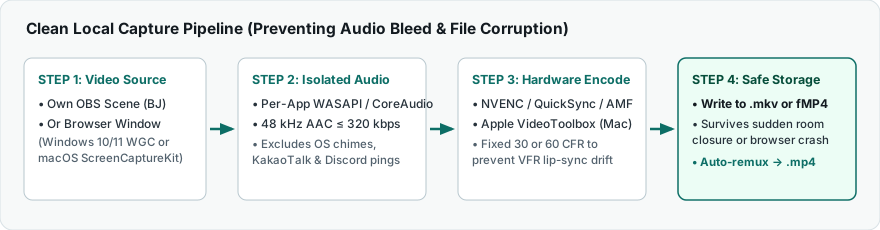
Windows 10 & Windows 11 Configuration (OBS Studio)
- Open a dedicated browser window: Open
pandalive.co.krin its own Chrome or Edge window (not a tab buried in a window you will switch away from). Keep the window un-minimized; Windows stops rendering frames for minimized windows. - Add Window Capture: In OBS, add a Window Capture source targeting the browser window and set Capture Method to
Windows 10 (1903 and up)(Windows Graphics Capture). If the video frame appears black, see the GPU acceleration fix in our Troubleshooting Guide. - Isolate Browser Audio Only: Disable global Desktop Audio in Settings → Audio (or mute it), then add an Application Audio Capture (BETA / WASAPI) source pointed specifically at
chrome.exeormsedge.exe. This ensures KakaoTalk alerts, system chimes, and other apps stay out of the recording. - Alternative Built-In Windows Recorders: Windows 11 Snipping Tool (Win + Shift + S → Video icon) and Xbox Game Bar (Win + G) can capture a browser region or window for quick clips without installing software, but both record mixed system audio and write directly to
.mp4at variable framerates.
macOS Configuration (macOS 13 Ventura & Newer)
- Grant Permissions First: Open System Settings → Privacy & Security → Screen & System Audio Recording and enable OBS Studio (restart OBS when prompted).
- Use macOS Screen Capture: Add a macOS Screen Capture source in OBS, set Method to
Application CaptureorWindow Capture, and select Safari or Chrome. Modern macOSScreenCaptureKitcaptures the browser's audio directly without needing third-party loopback drivers like BlackHole. - Quick Built-In Clip Option: Pressing Cmd + Shift + 5 opens macOS Screenshot recording, which captures crisp H.264/HEVC
.movvideo, though macOS built-in recording only captures microphone input (not internal browser audio) unless paired with an audio loopback device.
4. Always Record Live Streams to .mkv or Fragmented .mp4
Live PandaLive rooms end immediately when a BJ stops streaming, changes room attributes (such as transitioning from a public broadcast into a 팬방 fan room), or if your browser session drops. Standard unfragmented .mp4 files write their index atom (moov) only when recording stops cleanly—meaning an unexpected crash leaves the entire multi-gigabyte file unreadable.
- Set Recording Format in OBS (Settings → Output → Recording) to Matroska Video (
.mkv) or Hybrid MP4 / Fragmented MP4. - If editing software requires standard
.mp4, enable Settings → Advanced → Recording → Automatically remux to mp4. Remuxing copies the encoded video and audio streams into an MP4 container in seconds with zero quality loss, provided your drive has at least2.15×the session size free (check exact requirements in the Storage Calculator).